
WordPress Email Registration Blacklist (CMRB) - Use Case - How to Block Reserved Usernames During Registration
Use Case - How to Block Reserved Usernames During Registration
Note: This guide uses:
- WordPress Email Registration Blacklist - This document uses version 1.8.4.
Introduction
The WordPress Email Registration Blacklist plugin allows you to control who can register on your WordPress site by applying rules based on email addresses, domains, IP addresses, and usernames.
In addition to blocking registrations using blacklists or online lists, the plugin also supports whitelisting and prevents the use of reserved usernames during the registration process. For example, administrators can prevent users from registering with usernames of celebrities or other high-profile names, ensuring that the registration process remains professional and avoids impersonation.
Use Case Front-End
Example of blocking an exact username match in the username field (reserved username: 'britney'):

Example of blocking a partially matched username in the email field (reserved username: 'britney')

Use Case Assumptions
In this use case, we will show how to use the plugin to block specific usernames during the registration process. This includes preventing users from registering with reserved names, whether they are entered directly as a username or used as part of an email address.
It follows:
- Installing the plugin
- Quick recap
- Enabling username blacklist
- Managing reserved usernames
- Editing front-end messages
- How it works on the front-end
- End result
Installing the Plugin
The process is the same for all CM plugins and add-ons.
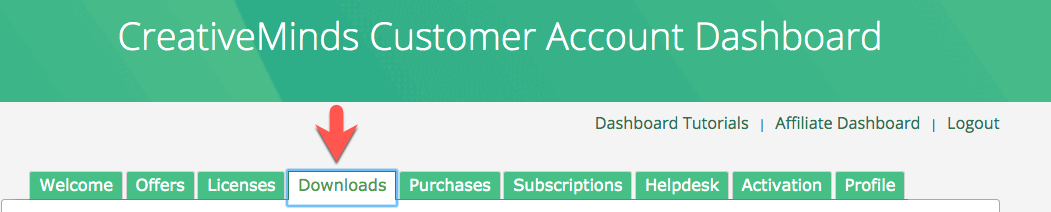
- Download the plugin from your customer dashboard.
- Log in to WordPress and navigate to the WordPress Admin → Plugins settings.
- Click on Add New.
- Activate it and add the license.
Learn more: Getting Started - Plugin Overview
Quick Recap
We recommend first reviewing other methods to secure the registration process on your site using the plugin:
Enabling Username Blacklist
To enable the feature, navigate to Admin Dashboard → CM E-Mail Registration Blacklist → General tab.

Find the section Username. The options are:

- Username Blacklist - If Enabled, the plugin will check usernames during the registration process and block the ones that are reserved by the admin.
- Match with - Defines how the reserved username should be matched. Allows to choose between:
- Whole String - Blocks registration only when the username exactly matches a reserved name. Example: if the reserved username is "britney", only "britney" will be blocked. Variations such as "britney123" will still be allowed.
- Partial String - Blocks registration when the reserved username appears as part of a longer value. Example: if the reserved username is "britney", both "britney" and "britney123" will be blocked.
- Check with - Defines which registration fields will be checked. Allows to choose between:
- Username - Only the username field will be checked.
- Email - The reserved username will be checked only within the email address. Example: if the reserved username is "britney", the email "britney@example.com" will be blocked.
- Both - Both the username field and the email address field will be checked for reserved usernames.
Once configured, click the button Update at the bottom of the page.

Managing Reserved Usernames
To add and delete Reserved Usernames, navigate to the corresponding tab:

Here you can see the following dashboard:

Usernames can be added in 2 ways - adding each username manually, or adding them in bulk by importing from a CSV file.
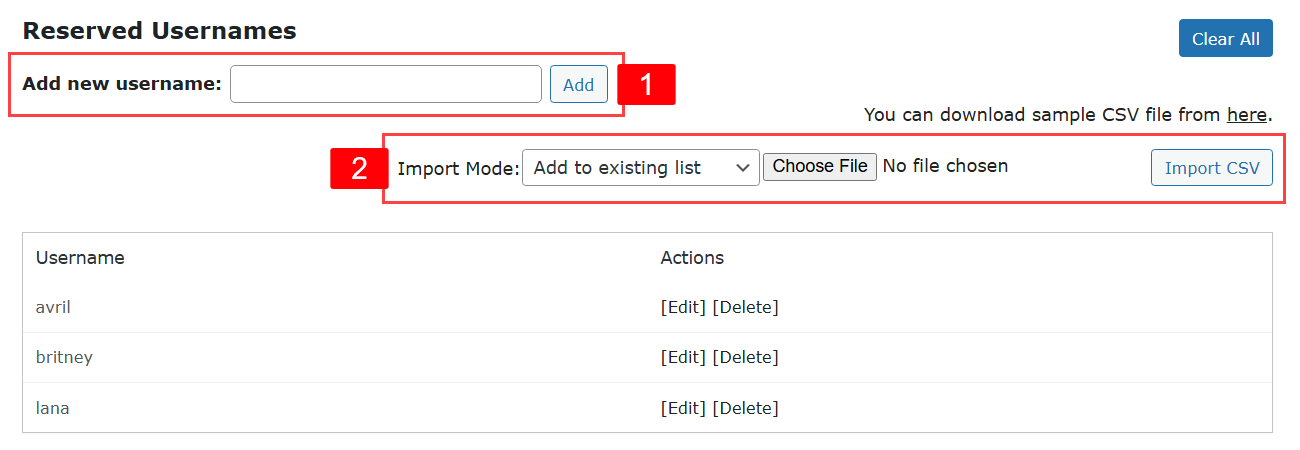
- Add new username - Allows to add usernames manually. Just type a username in the field and click Add.
- Import CSV - Allows to add usernames in bulk by importing them from a CSV file. Click Choose File, select the needed CSV file and click Import CSV. There are 2 import modes:
- Add to existing list - Adds usernames from a CSV file to the current list of usernames.
- Replace the whole list - Removes all existing usernames, and adds only the ones that are in the CSV file.
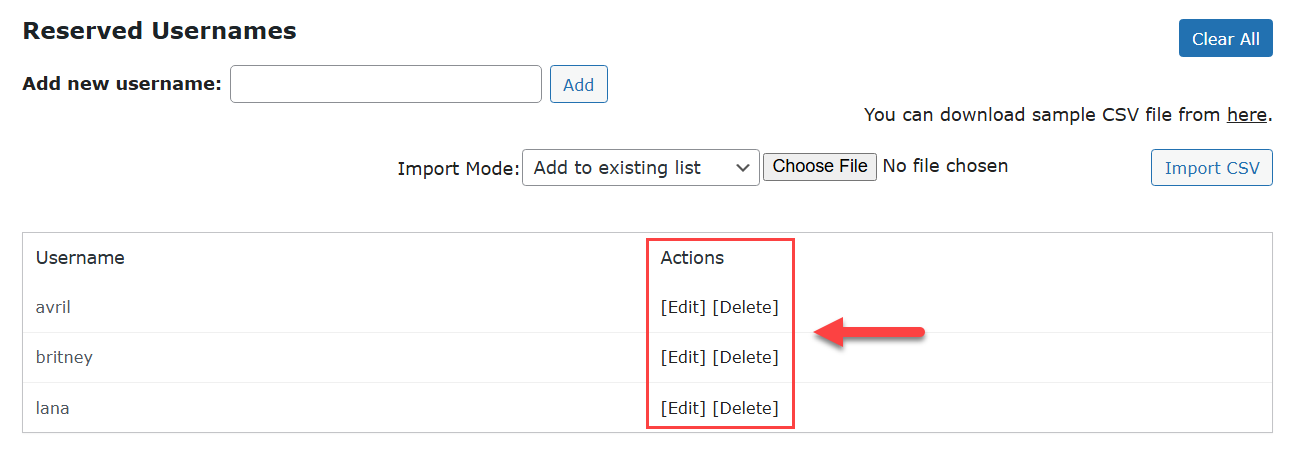
Below you can see a list of added by you usernames. Edit or Delete each name by using corresponding buttons:
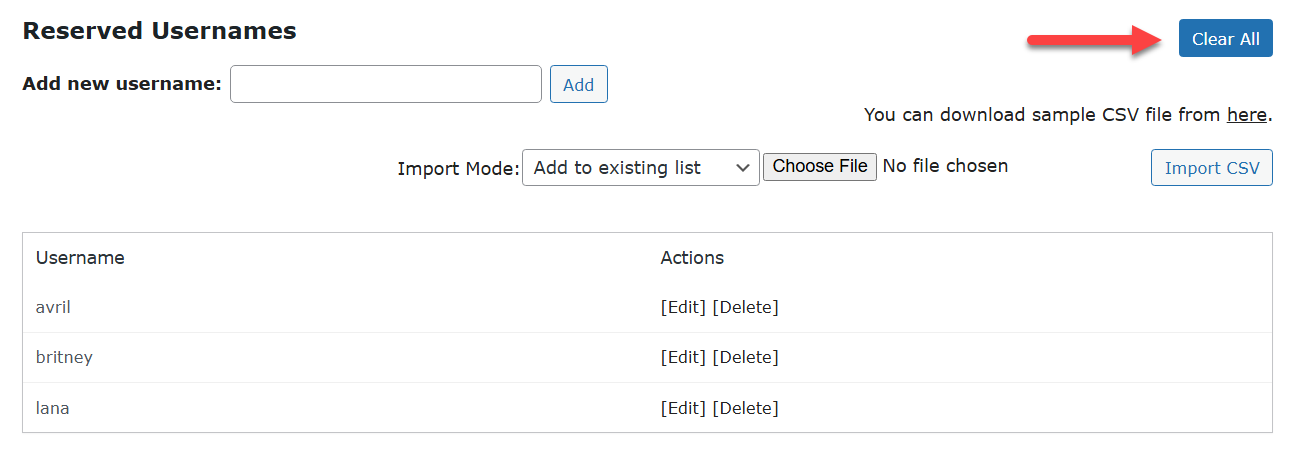
To remove all added usernames, click the button Clear All at the top right.
Once you finish editing the list of reserved usernames, click the button Update at the bottom of the page to save the changes.
Editing Front-end Messages
You can edit the front-end messages related to blocking registrations with reserved usernames. To do this, navigate to the Labels tab.

Relevant labels can be found under the Username section. The labels are:

- Username is in the Blacklist
- Email username is in the Blacklist
Click the button Update after editing the labels.
How It Works on the Front-end
When a user tries to use a reserved username, the registration is prevented and a validation message is displayed. The exact behavior depends on the selected Match with and Check with options in the general plugin settings.
Below are two examples demonstrating how the plugin works on the front-end.
Example 1: Blocking an Exact Match in the Username Field
Settings:
- Match with: Whole String
- Check with: Username
- Reserved username: britney
Scenario:
- User enters britney as the username → registration is blocked.
- User enters britney123 as the username → registration is allowed.
Front-end behavior:
When the blocked username is entered, a validation message appears, informing the user that the chosen name is reserved. This prevents the registration from being submitted until a different username is entered.

Example 2: Blocking Partial Matches in the Email Field
Settings:
- Match with: Partial String
- Check with: Email
- Reserved username: britney
Scenario:
- User enters britney@example.com → registration is blocked.
- User enters britney123@example.com → registration is blocked.
- User enters anyname@example.com → registration is allowed.
Front-end behavior:
The plugin scans the email address for any reserved usernames. If a reserved username is detected anywhere in the email, the registration is blocked and a validation message is displayed. Users must enter an email that does not contain a reserved username to proceed.

These examples illustrate how the plugin enforces reserved username rules on the front-end. Depending on the settings, exact or partial matches are blocked in the username, email, or both fields.
End Result
Following instructions found in the plugin and guides, you should be able to configure the plugin to prevent user registrations using reserved usernames.
Use Case Front-End
Example of blocking an exact username match in the username field (reserved username: 'britney'):
Example of blocking a partially matched username in the email field (reserved username: 'britney')
 |
More information about the WordPress Email Registration Blacklist plugin Other WordPress products can be found at CreativeMinds WordPress Store |
 |
Let us know how we can Improve this Product Documentation Page To open a Support Ticket visit our support center |