
WordPress Curated Lists (CMCLM) - Use Case - Creating a Front-end Link Directory with User Submissions and Editing
Use Case - Creating a Front-end Link Directory with User Submissions and Editing
Note: This guide requires:
- WordPress Curated Lists - This document uses version 1.6.0
Introduction
WordPress Curated Lists plugin lets users organize links and group them into categories, displaying everything as a structured curated list. It can be used for building resource collections, small link directories, or internal knowledge bases.
The plugin also supports front-end user submissions, so users can add and edit links and categories without accessing the WordPress dashboard.
Use Case Front-end
Front-end controls for adding and editing links and categories:

Use Case Assumptions
In this use case guide, we configure front-end submissions for adding and editing links and categories.
We consider that you have already bought the plugin, but not installed it.
It follows:
- Installing the plugin
- Quick recap
- Front-end submission settings
- Front-end submission workflow
- Admin moderation
- End result
Installing the Plugin
The process is the same for all CM plugins and add-ons.
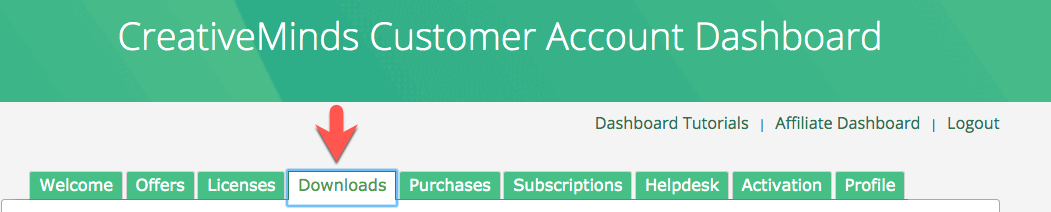
- Download the plugin from your customer dashboard.
- Log in to WordPress and navigate to the WordPress Admin → Plugins settings.
- Click on Add New.
- Activate it and add the license.
Learn more: Getting Started - Plugin Overview
Quick Recap
We recommend getting to know the basic plugin functionality first. Please check this use case guide:
Front-end Submission Settings
To enable front-end link submissions and user editing in your directory, you need to configure several options in the plugin.
Navigate to Admin Dashboard → Curated List Manager Pro → Options → Plugin Options.

Scroll down to the Frontend Submission section.
Main Settings
The options are:

- Link add access - Choose which type of users are allowed to submit new links on the front-end:
- Disabled - Disallow submitting new links.
- All users (Logged in and non logged in) - Allow all users to submit new links.
- Logged in users only - Allow only logged-in users to submit new links.
- Registered users with selected roles - Allow only users with selected roles to submit new links. When this option is chosen, a new option appears:
- Which roles can add links from the frontend - Select the user roles that are allowed to submit new links.
- Link edit/delete access - Choose what type of users are allowed to edit existing links on the front-end:
- Disabled - Disallow editing links.
- All users (Logged in and non logged in) - Allow all users to edit links.
- Logged in users only - Allow only logged-in users to edit links.
- Registered users with selected roles - Allow only users with selected roles to edit links. When this option is chosen, a new option appears:
- Which roles can edit/delete links from the frontend - Select the user roles that are allowed to edit links.
- Category add access - Choose what type of users are allowed to add new categories on the front-end:
- Disabled - Disallow adding categories.
- All users (Logged in and non logged in) - Allow all users to add categories.
- Logged in users only - Allow only logged-in users to add categories.
- Registered users with selected roles - Allow only users with selected roles to add categories. When this option is chosen, a new option appears:
- Which roles can add categories from the frontend - Select the user roles that are allowed to add categories.
- Category edit/delete access - Choose what type of users are allowed to edit/delete categories on the front-end:
- Disabled - Disallow editing/deleting categories.
- All users (Logged in and non logged in) - Allow all users to edit/delete categories.
- Logged in users only - Allow only logged-in users to edit/delete categories.
- Registered users with selected roles - Allow only users with selected roles to edit/delete categories. When this option is chosen, a new option appears:
- Which roles can edit/delete categories from the frontend - Select the user roles that are allowed to edit/delete categories.
- Moderation - If enabled, all newly suggested or edited links and categories will be held for admin moderation.
- Captcha - If enabled, a simple captcha will be added to the submission form to prevent spam link and category submissions.
Manage Link Form Labels
Under the sub-section Manage Link Form Labels you can edit front-end labels related to the front-end form for submitting and editing links.

- Form heading
- Form heading for edit
- Name field text
- Subtitle field text
- Description field text
- URL field text
- Captcha field placeholder text
- Submit button text
- Update button text
- Delete button text
- Delete button confirm text
- Captcha failure error
- Link failure text
- Link success text
- Form update success text
- Form success text for moderation
- Form update success text for moderation
- Form delete success text
Manage Category Form Labels
Under the sub-section Manage Category Form Labels you can edit front-end labels related to the front-end form for submitting and editing categories.

- New category button label
- Form heading
- Form heading for edit
- Name field text
- Description field text
- Captcha field placeholder text
- Submit button text
- Update button text
- Delete button text
- Delete button confirm text
- Captcha failure text
- Category failure text
- Category success text
- Category update success text
- Category success text for moderation
- Category update success text for moderation
- Category delete success text
Notifications Settings
Under the sub-section Notifications you can configure email and dashboard notifications related to link and category submissions.

- Notification in the admin dashboard - Enable it to display a notification in the admin dashboard, when link and category submissions are waiting for approval.
- Waiting links reminder email - Enable it to send email notifications, when link and category submissions are waiting for approval.
- Reminder interval (Days) - Set how often email notifications should be sent. The period value is specified in days.
- Recipient Email Addresses - Define one or multiple email addresses, where to send email notifications. Multiple emails should be separated with a comma.
- Reminder email subject - Set the subject of the email notification.
- Reminder email content - Set the body of the email notification. Use placeholders {waiting_links_count} and {waiting_cats_count} to display the number of links and categories respectively waiting for approval.
After configuring the settings, click the button Save Changes at the bottom of the page.

Front-end Submission Workflow
Depending on the access settings, your front-end link directory will display the following controls for managing links and categories:
- Button for adding new category.
- Button for editing existing category (displayed next to each category name).
- Button for adding new link to the relevant category (displayed next to each category).
- Button for editing existing link (displayed next to each link).
Once clicking on a button for adding or editing a link, a form will appear below the category name. In both cases - adding new link or editing the existing one - the user will see a simple form with a few fields:
- Name - The user should add a name of the link. This field is required.
- Subtitle - Allows to add a short description for a link. This field is optional.
- Description - Allows to add a link description. This field is optional.
- URL - The field for adding the link itself. This field is required.
- Captcha - Provides a simple question to prevent bot submissions. This field is required (when enabled in the plugin settings).
After filling the required fields, the user needs to click the button Submit. After that the user will see a message that the link is either successfully submitted or held for moderation - depending on if the moderation is enabled in the plugin settings.

When editing an existing link, the user can also see a button Delete. Once clicked, a confirmation message appears - after clicking Ok, the link is deleted without any moderation.

The similar process is when adding a new category. Once clicking on a button for adding or editing a category, a form will appear. The user will see a simple form with a few fields:
- Name - The user should add a name of the category. This field is required.
- Description - Allows to add a category description. This field is optional.
- Captcha - Provides a simple question to prevent bot submissions. This field is required (when enabled in the plugin settings).
After filling the required fields, the user needs to click the button Submit. After that the user will see a message that the category is either successfully submitted or held for moderation - depending on if the moderation is enabled in the plugin settings.

Important
When you create a category from the front-end, this category is not assigned to any list - and this category might not appear on the front-end without taking additional actions.
There are a few different ways how to display a curated list. You can either display all existing lists and their categories but using a simple shortcode [cm_list_manager]
This shortcode has additional parameters such as:
- list - this parameter allows to display selected lists only. in order to display a newly created category on the front-end, you as an admin need to manually assign a category to one of the displayed lists.
- category - this parameter allows to display selected categories only. So in order to display a newly created category on the front-end, you need to include its slug into the shortcode parameter.
So the additional actions depend on the method you use to display the curated list.
When editing an existing category, the user can also see a button Delete. Once clicked, a confirmation message appears - after clicking Ok, the category is deleted without any moderation.

Important
When you delete a category, the links that belong to that category are not removed - you either need to remove them manually or you need to reassign them to another category if you want to display them.
Admin Moderation
The moderation workflow ensures that all user-submitted links and categories are reviewed before appearing in the directory.
The admin will see a notification in the admin dashboard. The message indicates how many links or categories are waiting for approval.

The message for links has a link which leads to the dashboard, where the admin can manage links. On that dashboard the admin can sort links by the Pending Only status. Here the admin can either edit and publish the link or delete it.

The same with categories - the notification includes a link which leads to the dashboard, where the admin can manage categories. On that dashboard the admin can sort categories by the Pending Only status. The admin can either edit and publish the link or delete it.

End Result
Following instructions found in the plugin and guides, you should be able to configure front-end submissions for adding and editing links and categories.
Use Case Front-end
Front-end controls for adding and editing links and categories:
 |
More information about the WordPress Curated Lists plugin Other WordPress products can be found at CreativeMinds WordPress Store |
 |
Let us know how we can Improve this Product Documentation Page To open a Support Ticket visit our support center |